
Lip Sync characters
A Lip Sync animation is a 3D character that mouths your audio, changes expression, looks around, dances on the beat and moves across a stage. It is a composition, so it drops onto the timeline like a video: fitted to a wall, wrapped over a window or garage door, or full frame. The background is see-through by default, so the rest of the show keeps playing around it.
The characters
| Character | Notes |
|---|---|
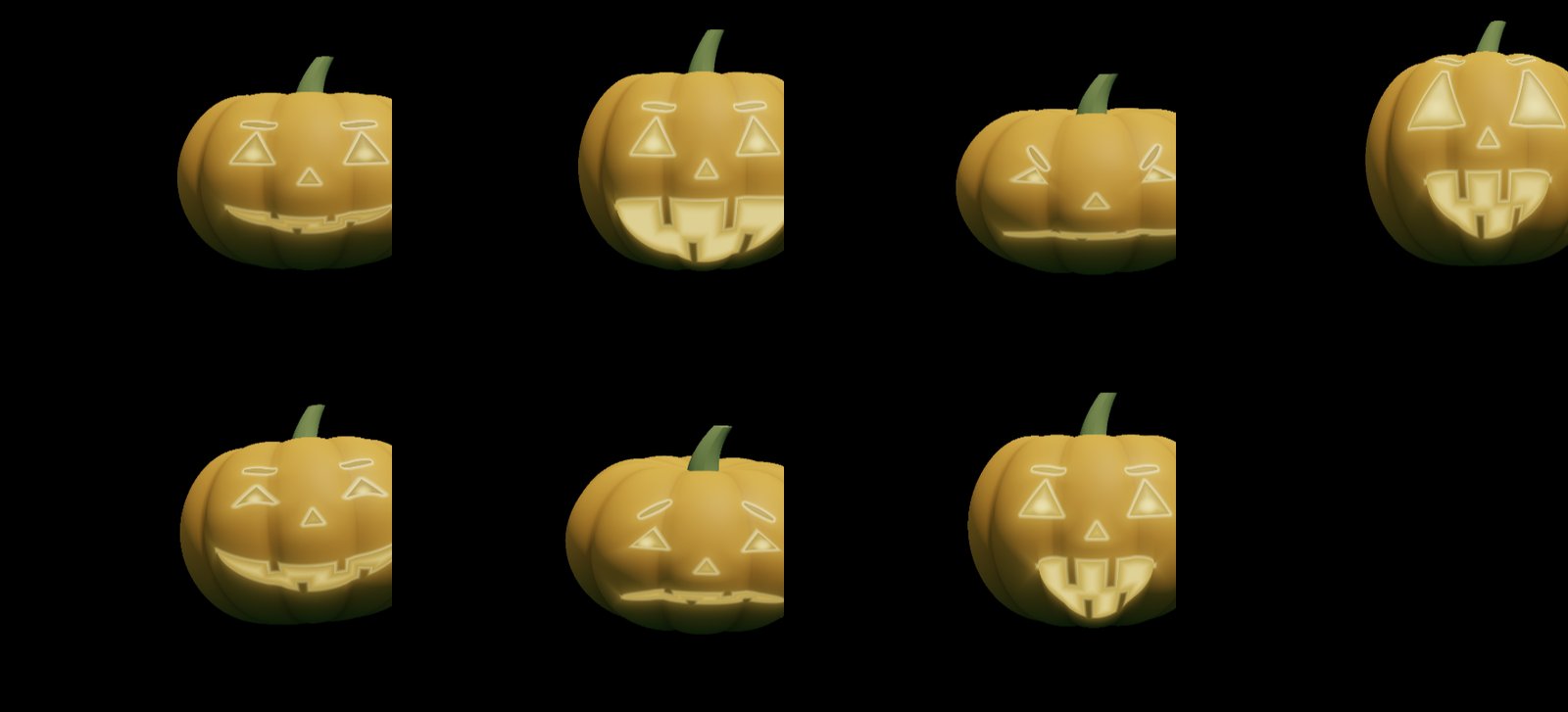
| Pumpkin (jack-o'-lantern) | Carved brows, a stretching mouth, a flickering candle inside, four carving styles. Turn its body off to project just the glowing face onto a real pumpkin. |
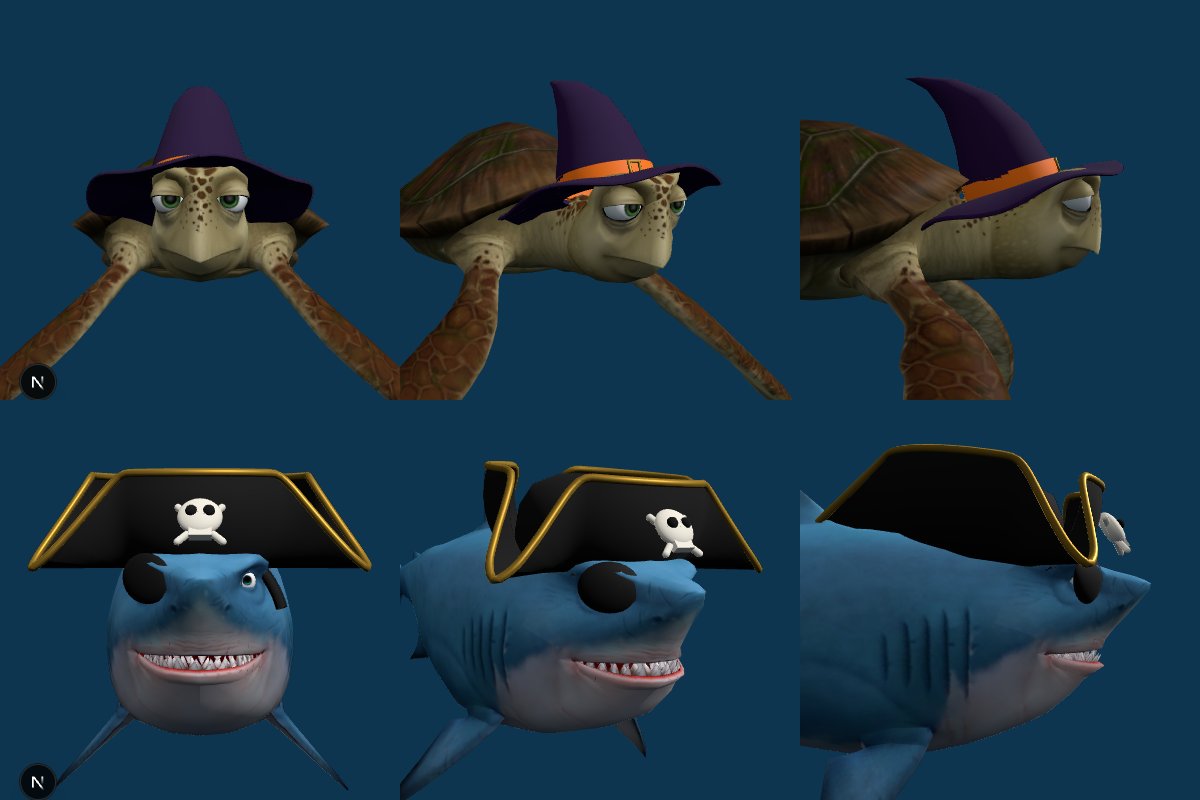
| Turtle | A sea turtle that swims, waves, laughs and blows bubbles. Wears a witch hat for Halloween. |
| Shark | Turtle's friend, with his own moves. |
| RX-24 Rex | A robot. |
| Snowman | Top hat with holly, red scarf and a coal-pebble mouth. |
| Your own model | Upload a rigged GLB, glTF, FBX or zipped model. Models with face bones get jaw and lip movement; the rest of the performance works the same. |
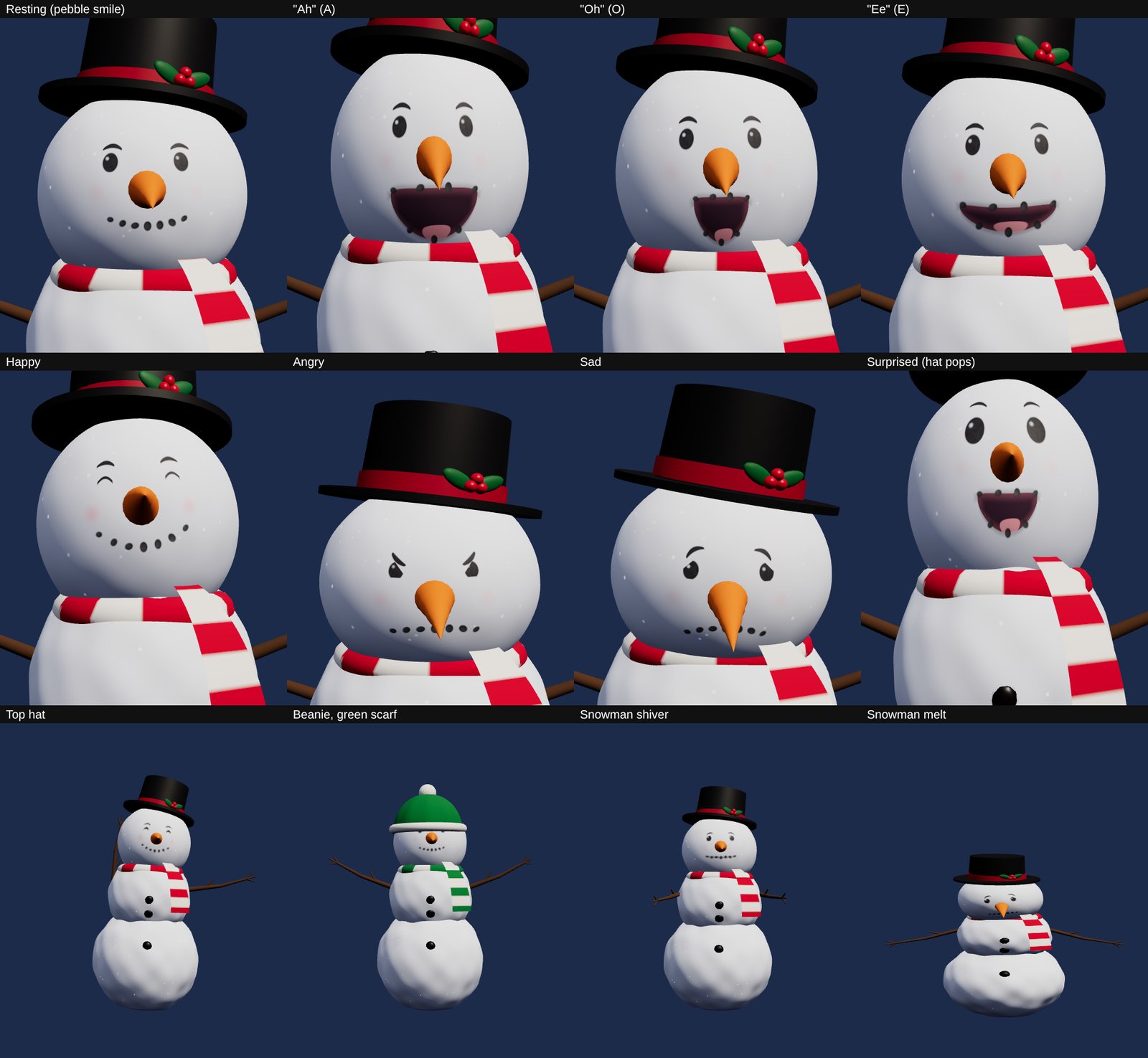
Costumes (hats, scarves and the like) are per character in the inspector.
Make one
- In the Library's Compositions tab press New Lip Sync animation. It opens in its own tab.
- Add a character and pick who.
- Add audio: a song, your own recording or a voice line you have the
rights to use. Projector Show does not make the voice; it animates to the
sound you give it. (The Banter wizard is the exception: paste a script,
one line per speaker like
TURTLE: [happy] Hey dudes!, and each line is voiced, lip-synced and placed after the one before, when a voice provider is configured on your account.) - The mouth shapes (visemes) are set from the audio automatically. Paste the words and Match words lines each one up with the recording.
- Add vocal marks for where the singing is, so a long intro or a guitar break keeps the mouth closed. A character can also sing along to the main show's soundtrack at chosen times.
- Place moves, expressions and glances on the lanes, then drop the animation on a face of the house.
The performance lanes
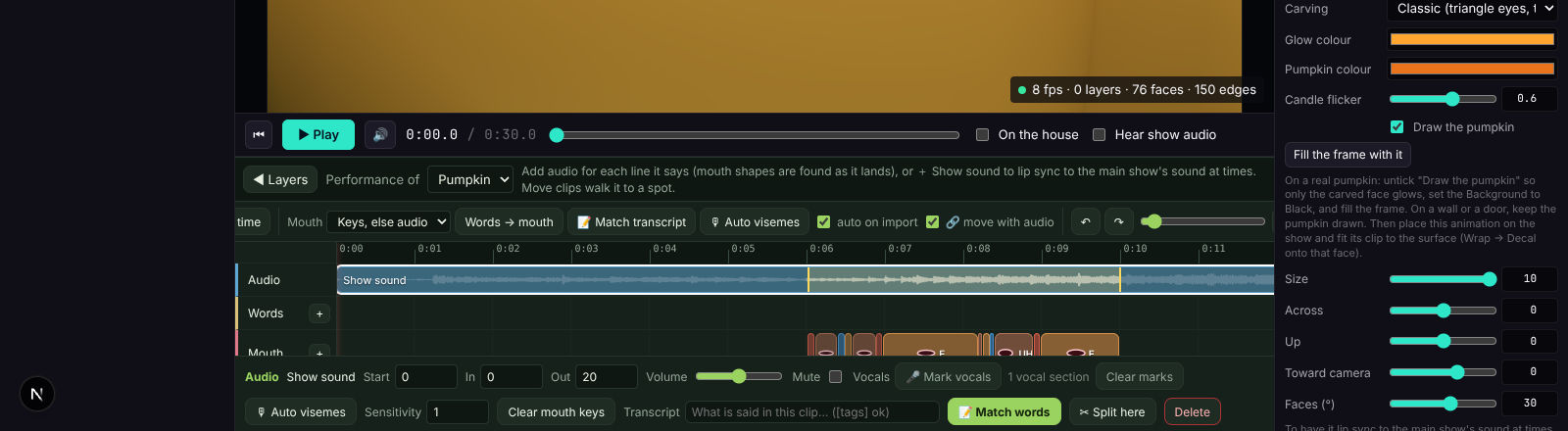
Each character has its own lanes in the timeline under the preview, all in stage seconds from the animation's start:
| Lane | Holds |
|---|---|
| Audio | The voice clips. |
| Words | The transcript, one word per key, aligned to the audio. |
| Mouth | Visemes. Add, move or delete keys when a word should land differently. |
| Expression | Happy, scared, angry, sleepy, wink and more, each with a strength. |
| Action | Moves and dance steps: wave, laugh, bubbles, spins, bounces. Pick them from the button board and drag them on the beat. |
| Eyes | Where the character looks, and blinks. |
| Move | A path across the stage, with a keyframed camera. |
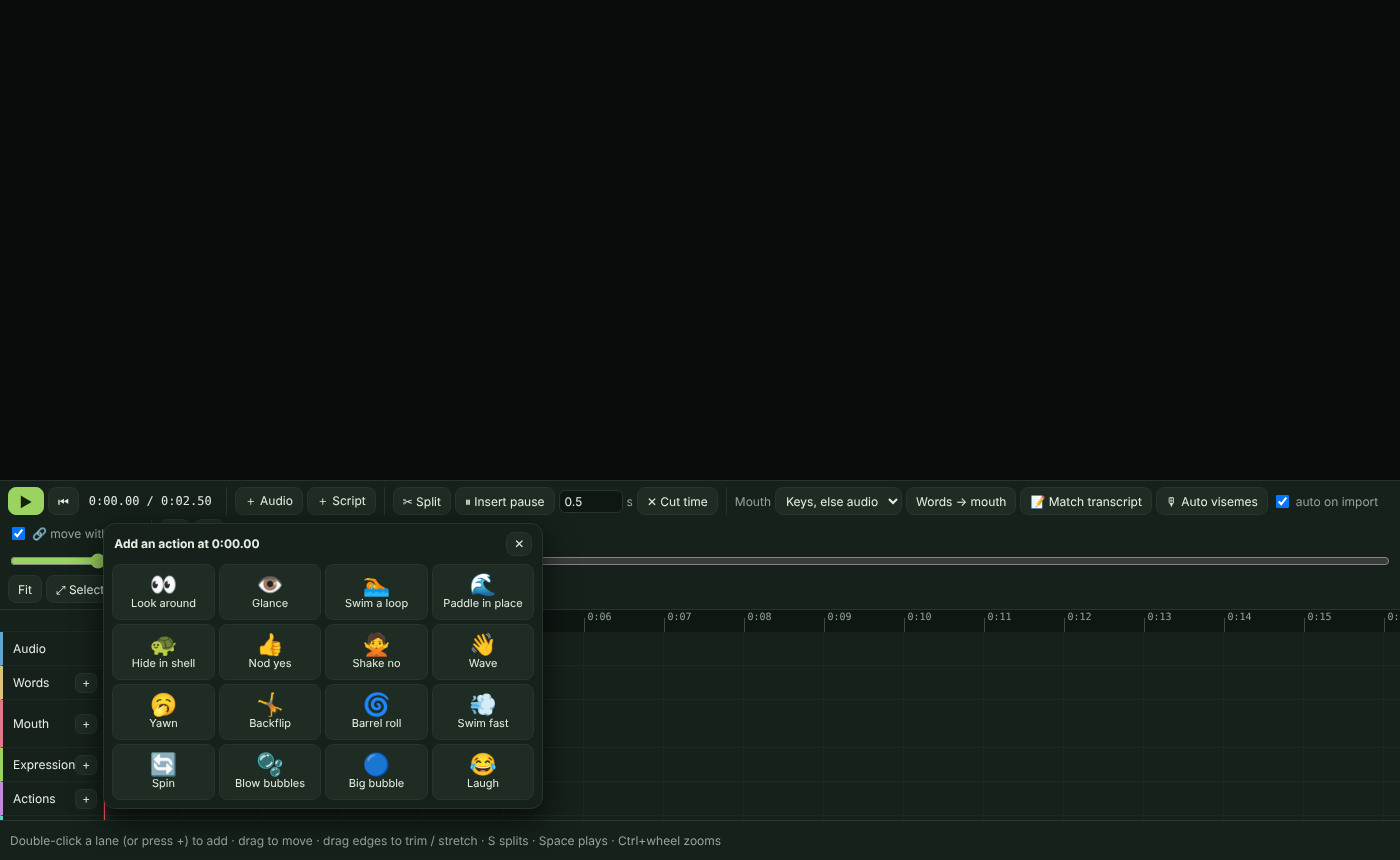
Up to six characters share one animation and one stage. The performance dock under the preview is where you scrub, pick a lane and edit keys; the Performance settings set the stage, camera (point it straight at the character, or a close-up of the face for a big talking face on a wall), light and background.
A character's capabilities differ: the pumpkin has no legs to dance with, a model without face bones mouths with its jaw. The inspector shows what the chosen character can do, and the AI assistant reads the same list.
On the house
Close the animation's tab (or switch to the main show), find it under Compositions, and drop it on a face, or use Place on → Main stage. The composition's size is the frame the character is drawn in; Fit to a picked face stretches that frame to the face. Letterboxing is kept so a character on a wide garage door is not squashed.
The same characters play on a player box without the designer: the Jukebox has a Turtle card where visitors press buttons (a hello, a move with its sound) and the box animates them live.