
Display and Live Mode
There are two ways to get the picture onto the projector: a computer plugged into it running the designer's projector window, or a player box that plays rendered shows on its own. Live Mode joins the two: the box shows exactly what your designer is showing.
The projector window
In the Display tab:
- Open projector window opens a second browser window containing nothing but the output. Drag it onto the projector's screen and press F for fullscreen. It mirrors the designer: Space plays and pauses from either window.
- Go live makes the output fullscreen in this window instead (Esc returns to the designer). Use it when the designer computer is the one on the projector and you are done editing.
- Align is the corner pin, lens correction and grade for this projector; see Map your house.
- Export renders the show to MP4; see Timeline and media.
In the desktop app the Projector menu puts the output full screen on the screen you choose, with no dragging.
The projector window keeps playing once the show is loaded, so a dropped Wi-Fi connection does not stop it. It does need the browser tab to stay open and the computer to stay awake: turn off sleep and screen dimming on a laptop you leave outside.
Live Mode
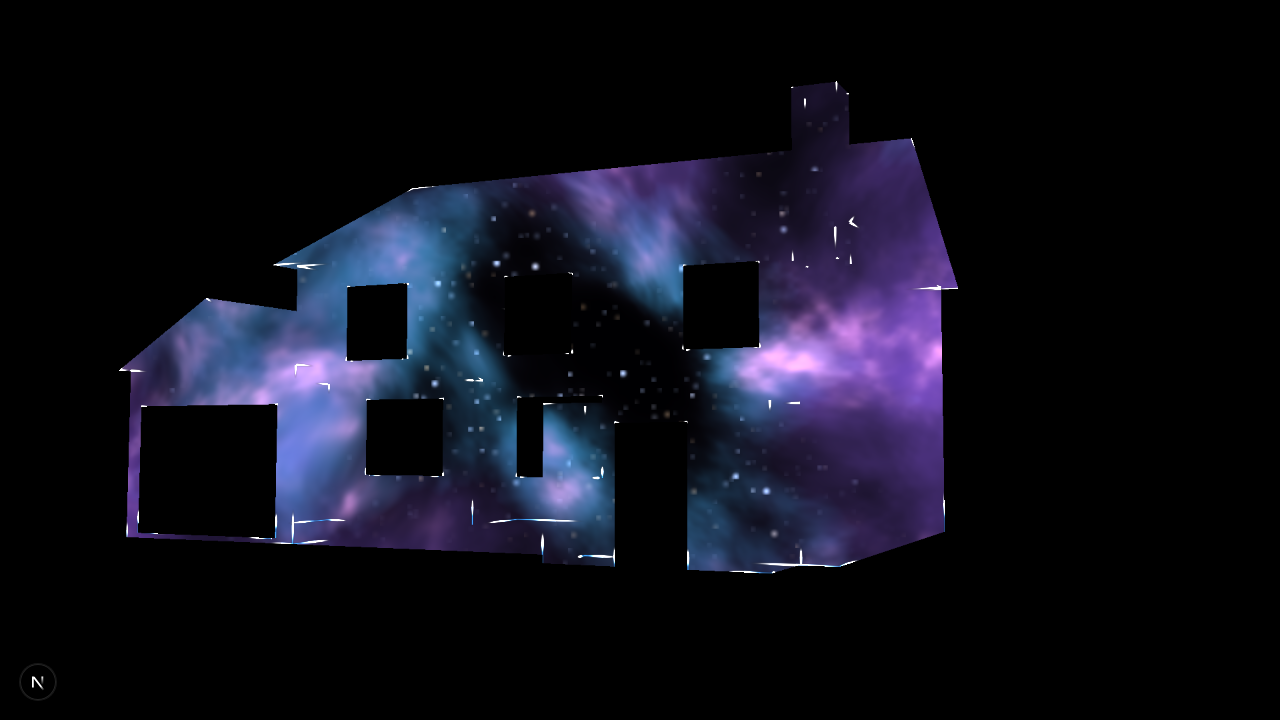
With a player box paired, the Remote Display tab shows a Cast this show button on each display. Press it and the box opens a kiosk browser that follows your designer: the model, the clip you are auditioning, the playhead, everything. Line things up on the real house from the lawn with a laptop or tablet, then stop casting and the box goes back to its schedule.
- The box needs Chrome, which the Linux installer adds unless you passed
--no-live, and the Windows installer always adds. - One designer casts to a display at a time; another browser can Take over casting from the Now section.
- The Live resolution in the Timeline's Settings panel is what the box draws at; lower it on a slow box.
- Live Mode is for setup and for operating a show by hand. For a show that runs every night, render it and use a playlist and schedule: the box plays those from its own disk, with no browser and no network needed.
Phone app pairing
The Display tab also shows a pairing code for the Projector Show phone app, so a phone can control the designer on this computer (play, pause, jump). Codes expire after five minutes; show a new one from the Display panel. For a player box, use the phone remote instead, which needs no app.