
Install the player box
The player is a small PC plugged into the projector. It pairs to your account once, then plays your playlists on a schedule it keeps itself (so the show carries on when the Wi-Fi drops), switches the HDMI signal off between shows so the projector can sleep, and can follow your designer live. No keyboard, no desktop, and no inbound ports: the box only makes outbound HTTPS calls.
Pick a box
| Linux (recommended) | Windows | |
|---|---|---|
| Operating system | Ubuntu Server 24.04 or 26.04 LTS, x86_64 | Windows 10 or 11, x64 or ARM64 |
| Typical hardware | An Intel N100 mini-PC or similar | Any PC that already drives the projector |
| HDMI off | Real per-port signal off; the projector sees NO SIGNAL and sleeps | The monitor power-off broadcast: every screen goes off at once, any key wakes it |
| Runs as | A system service, from boot, no sign-in | The signed-in user: turn on automatic sign-in so it comes back after a power cut |
| Games | Yes (--games) |
No |
Linux is the one to buy for. Windows is for a PC you already have on the projector.
Linux: one line
Install Ubuntu Server on the box, plug it into the projector over HDMI, sign in once (keyboard or SSH) and run:
curl -fsSL https://projectorshow.com/install/linux | sudo bash
It installs Node.js, mpv and fonts, plus Google Chrome and cage for Live Mode
and TV & web (skip those with --no-live), creates the projector-show service
user, downloads the agent and checks it against a SHA-256 hash, installs a
systemd service that restarts on failure, and, if the machine boots to a
desktop, switches it to boot to a console so the agent can own the HDMI port
(this asks for one reboot).
Options go after -s --:
curl -fsSL https://projectorshow.com/install/linux | sudo bash -s -- --games
| Option | What it does |
|---|---|
--games |
Also installs what games on the house need. A later run without it keeps what is there. |
--no-live |
Skip Chrome and cage. The box can then play playlists but not Live Mode or TV & web. |
--uninstall |
Remove the player. Add --purge to drop the pairing too. |
Re-running the line upgrades the box. So does Update now in the app (Remote Display → Settings → General), which re-runs it on the box with the options it was last installed with.
Windows: one line
On a Windows 10 or 11 PC connected to the projector over HDMI, signed in as the account it will use for shows, open PowerShell (not as administrator) and run:
irm https://projectorshow.com/install/windows | iex
Everything goes under %LOCALAPPDATA%\ProjectorShow: the official Node.js,
mpv and Google Chrome (through winget), the agent (checked against its SHA-256),
and a restart loop started by a scheduled task at sign-in. Re-run it to upgrade.
To remove it:
$env:PS_UNINSTALL=1; irm https://projectorshow.com/install/windows | iex
Add $env:PS_PURGE=1 to drop the pairing too.
Two things to know on Windows: it is not a service, so turn on automatic sign-in or the show will not start after a power cut; and "HDMI off" turns every screen on the PC off at once, and a mouse or keyboard press wakes it.
Packaged installers
If you would rather not type a command, Remote Display → + Add a display (and Account → Displays) offers whichever of these have been built. Each one carries the same script as the one-liner, so a packaged box is identical to a one-liner box and updates the same way.
| Get it | What it does | |
|---|---|---|
| Windows installer (.exe) | /install/latest/windows | A normal setup wizard, per user, no admin rights. It registers an uninstaller under Settings → Apps. The installer is not code-signed yet, so Windows may warn about an unknown publisher: choose More info, then Run anyway. |
| Ubuntu package (.deb) | /install/latest/linux | For a box already running Ubuntu: sudo apt install ./projector-show-player_*.deb. The player sets itself up in the background over the next few minutes (log: journalctl -u projector-show-setup). For games, put PS_INSTALL_ARGS="--games" in /etc/default/projector-show-player first. apt remove uninstalls; apt purge drops the pairing too. |
| USB stick image (.iso) | /install/latest/image | For a bare mini-PC. Write it to a USB stick with balenaEtcher or Rufus and boot from it. It confirms before erasing the disk, asks only for the network and a login, installs Ubuntu Server to the largest disk and then the player. |
Each link redirects to the newest build; the SHA-256 is at the same address
with /sha256 on the end. If a link says no installer has been built yet, use
the one-line install.
Pair it
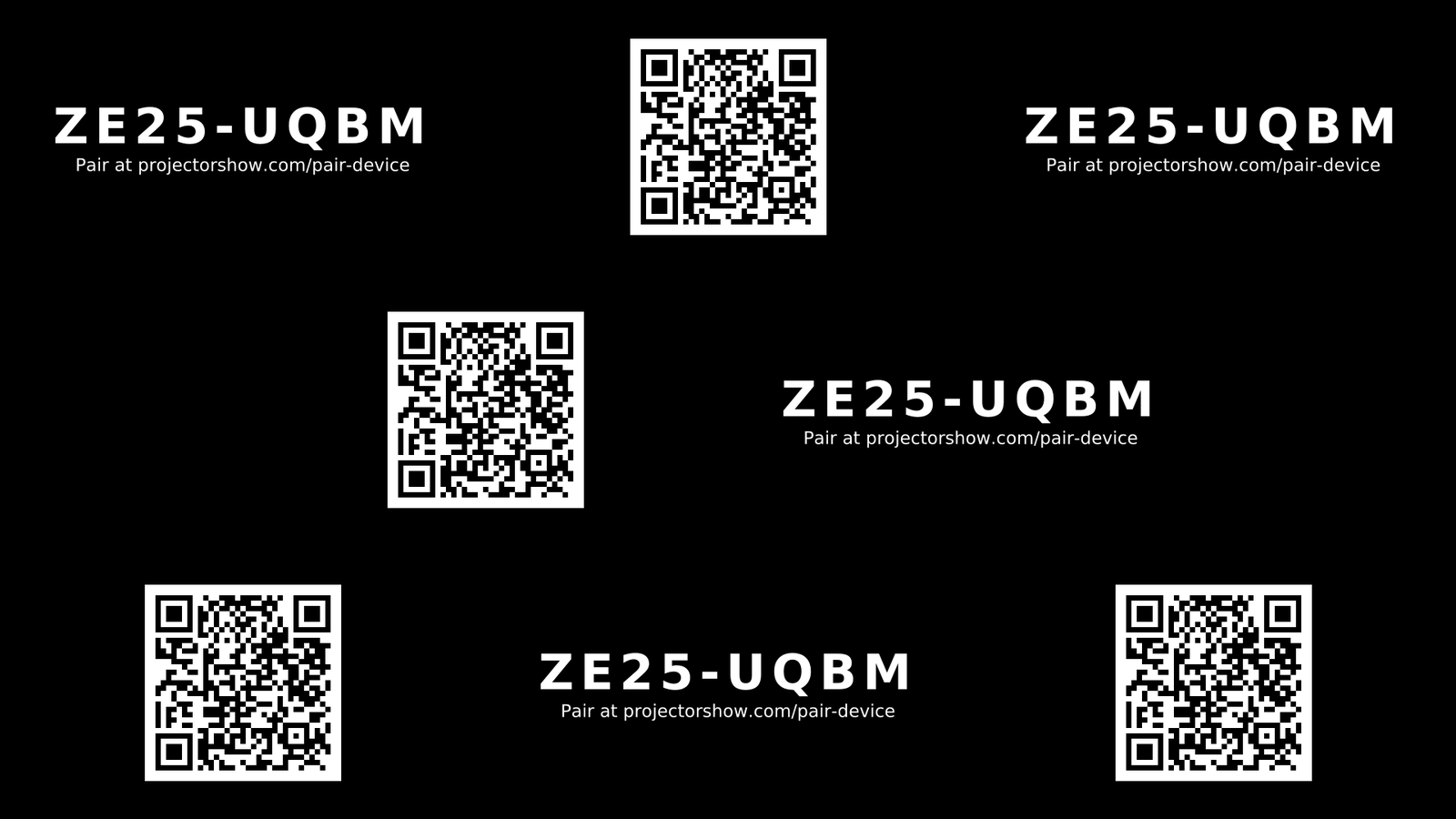
Once the player starts, a pairing code (and a QR code) fills the projector, tiled across the whole frame so that part of it lands somewhere readable on the building.
- In the designer open Remote Display and press + Add a display (or go to Account → Displays).
- Type the code and give the display a name. Scanning the QR code with a phone opens the same form with the code filled in.
- The box reports in within a few seconds. From then on it starts with the computer and reconnects by itself.
Player boxes need no subscription. A display belongs to the account that paired it; you can share it with a co-owner or a helper later.
After pairing
- Nothing to play yet shows as a black screen or the test pattern. Add a playlist and a schedule, or press Cast this show in the designer to use Live Mode.
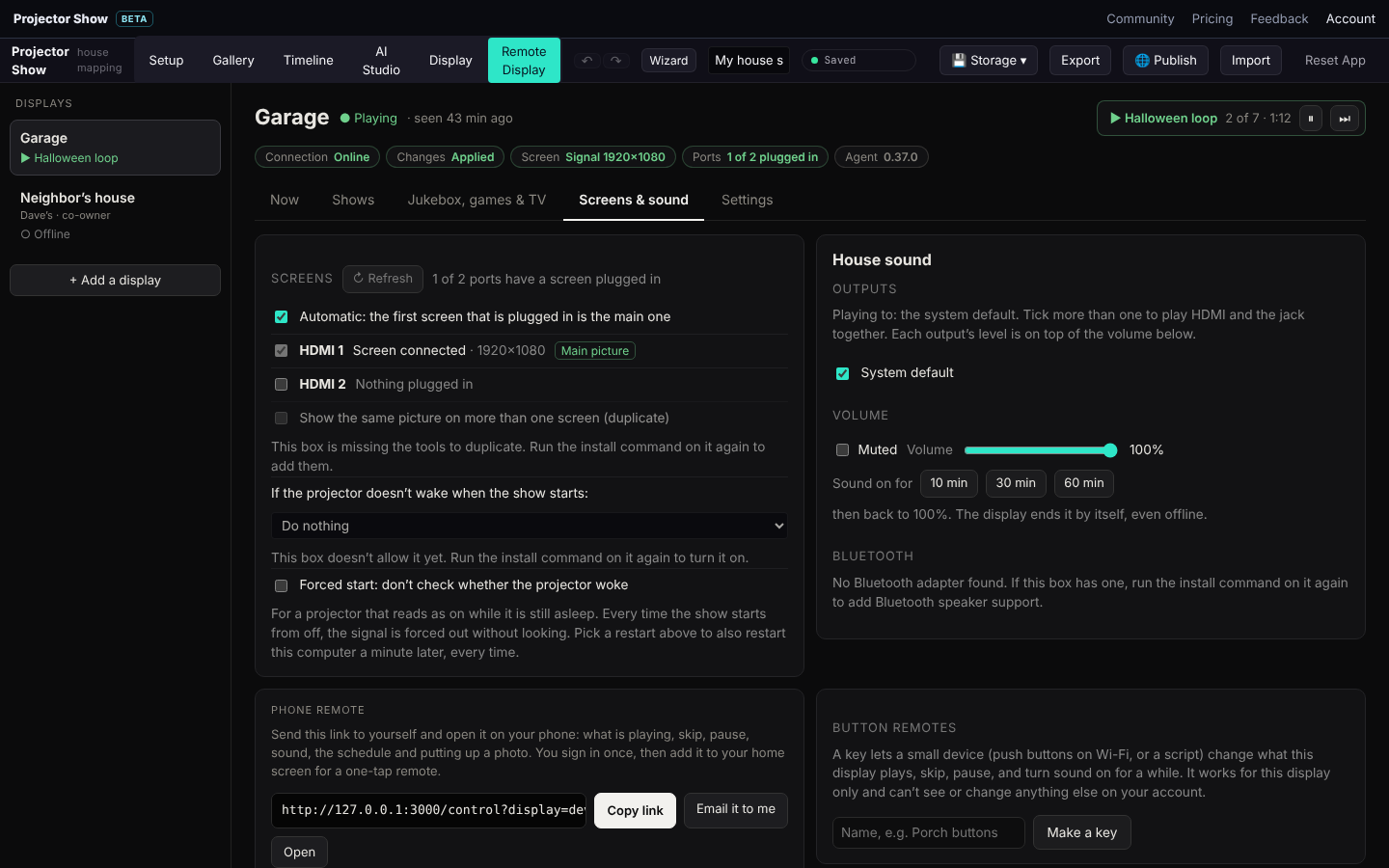
- Screens & sound picks which port is the projector, whether to mirror a second screen, and where sound goes (HDMI, the headphone jack or a Bluetooth speaker). Press Test to hear which port is which.
- Settings → General sets the box's time zone (the schedule runs in it), what to do when idle, and has Update now, restart and shutdown.
- Settings → Logs shows the box's log and upload progress when something looks stuck.
Remove a player
Linux: curl -fsSL https://projectorshow.com/install/linux | sudo bash -s -- --uninstall
(add --purge to forget the pairing). Windows: the PowerShell line above with
PS_UNINSTALL=1, or the uninstaller under Settings → Apps if you used the
.exe. Then remove the display from Settings → General in the app so it
stops appearing in your account.